> For the complete documentation index, see [llms.txt](https://docs.aiforglobaleducation.org/llms.txt). Markdown versions of documentation pages are available by appending `.md` to page URLs; this page is available as [Markdown](https://docs.aiforglobaleducation.org/ai-cooking-lab/creating-infographics-with-googles-ai-suite.md).
# Creating Infographics with Google's AI Suite
Creating infographics has never been easier with Google's Creative AI Suite.
## Using NanoBanana in Gemini
### **Step 1**
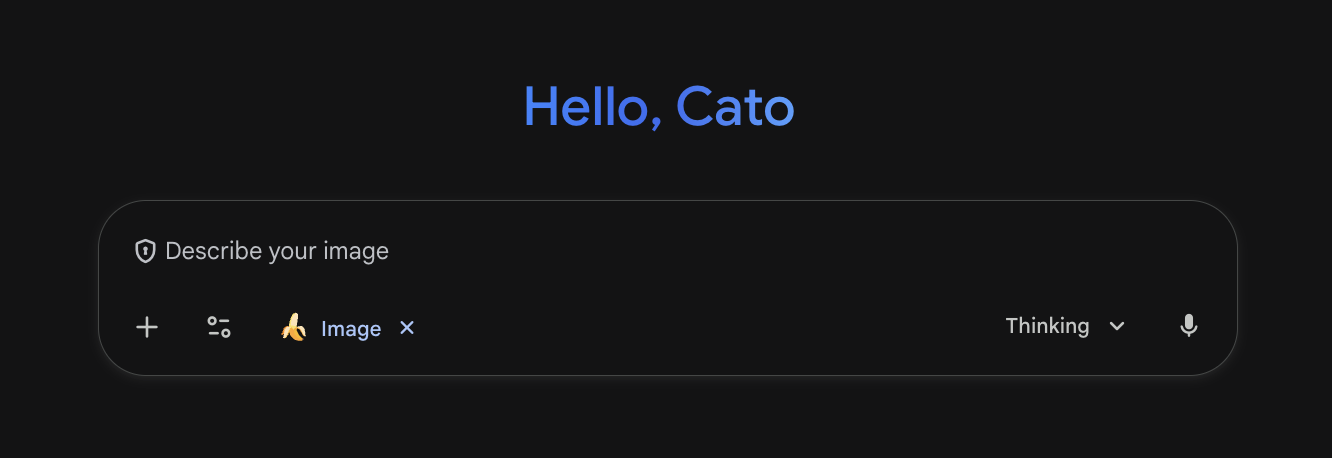
Go to [Gemini](https://gemini.google.com/app) and make sure you select the Image function. This will activate NanoBanana.
### Step 2
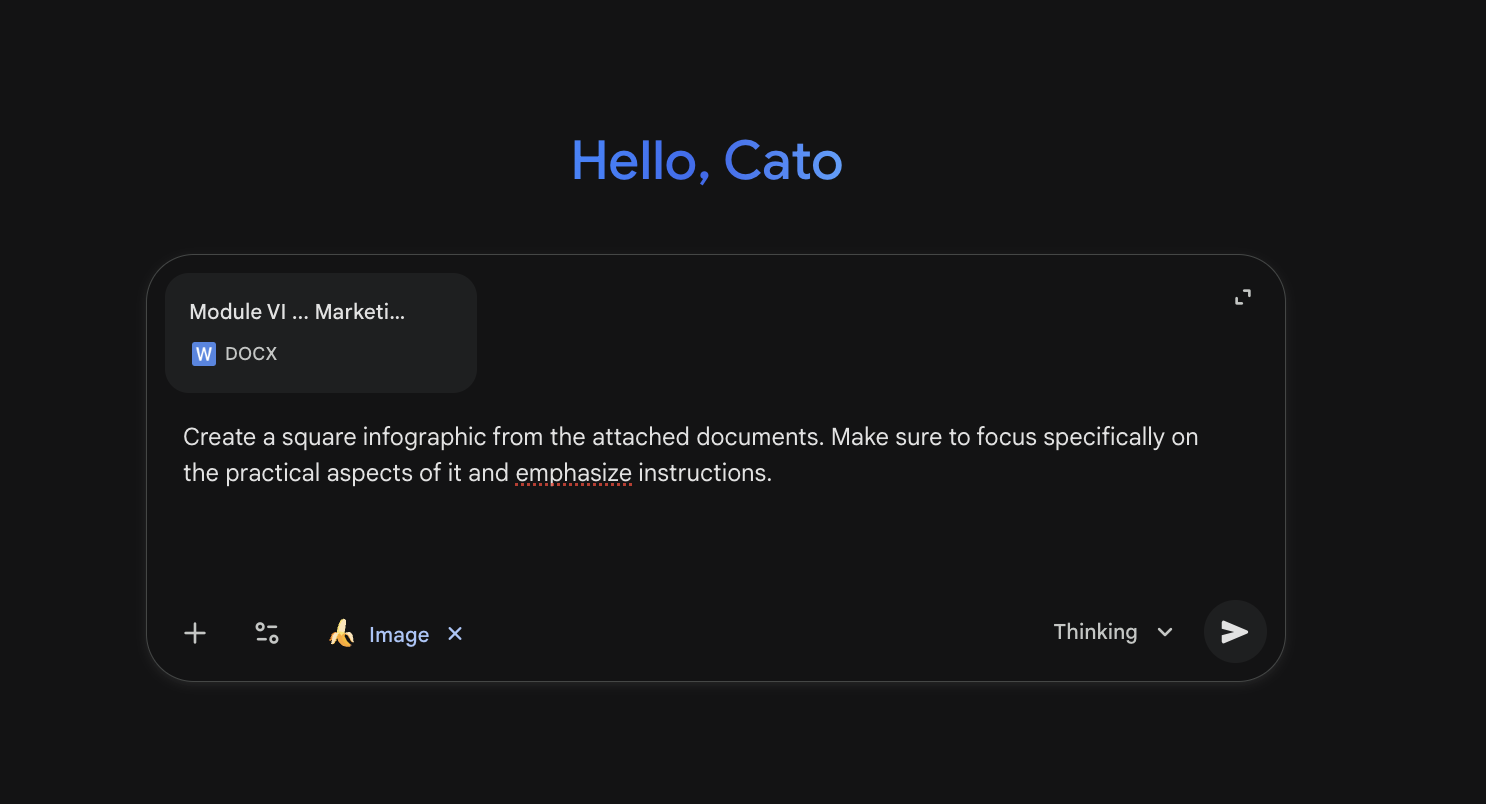
Provide Gemini either with a File from which to create the infographic, or with the text from which to create the Infographic followed by a prompt, such as :
```
// Create a square infographic from the attached documents. Make sure to focus specifically on the practical aspects of it and emphasize instructions.
```
### Step 3
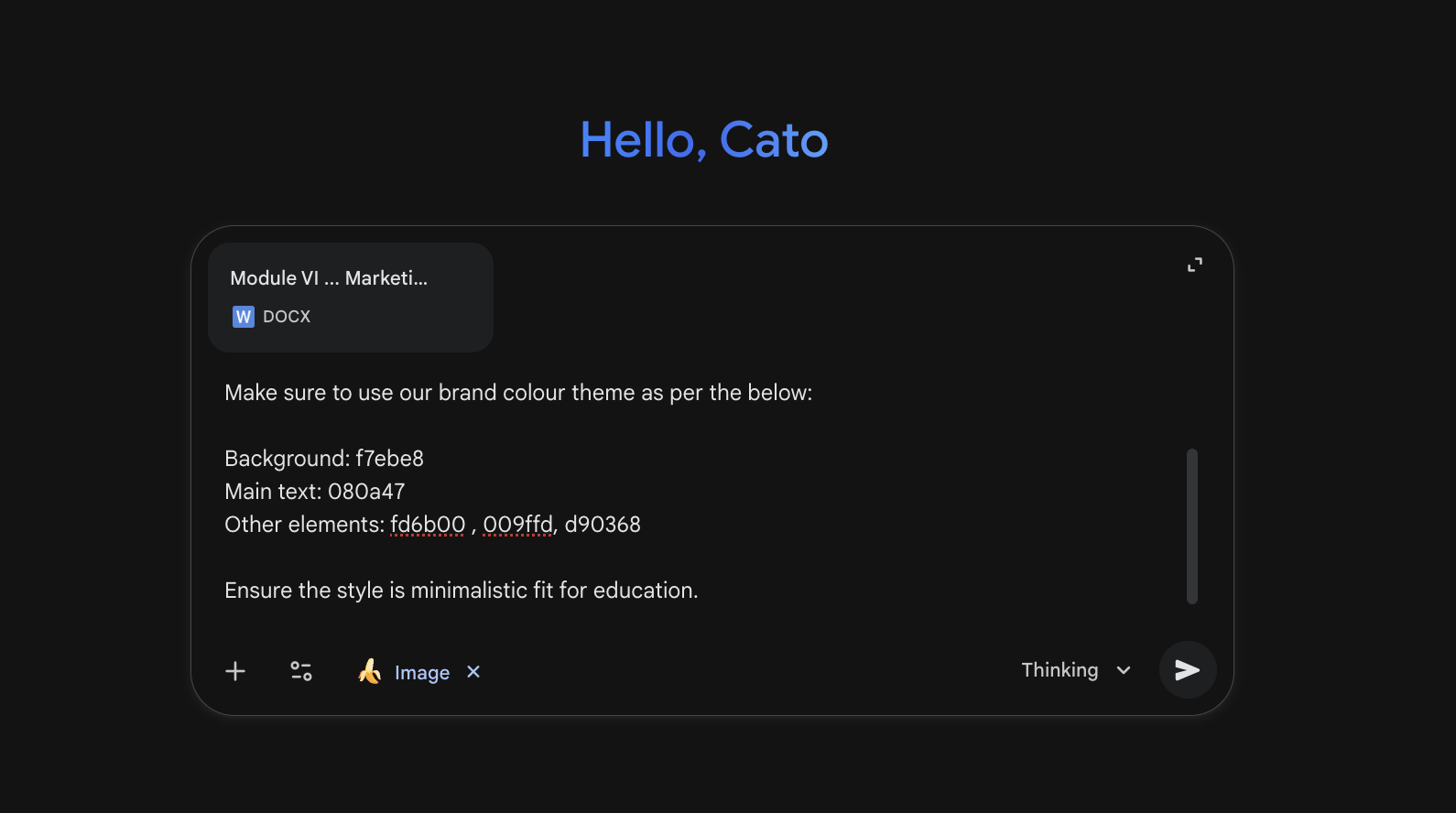
Include additional information about your style, brand guidelines and audience. Include additional parameters such as:
```
// Make sure to use our brand colour theme as per the below:
Background: f7ebe8
Main text: 080a47
Other elements: fd6b00 , 009ffd, d90368
Ensure the style is minimalistic fit for education.
```
### Result
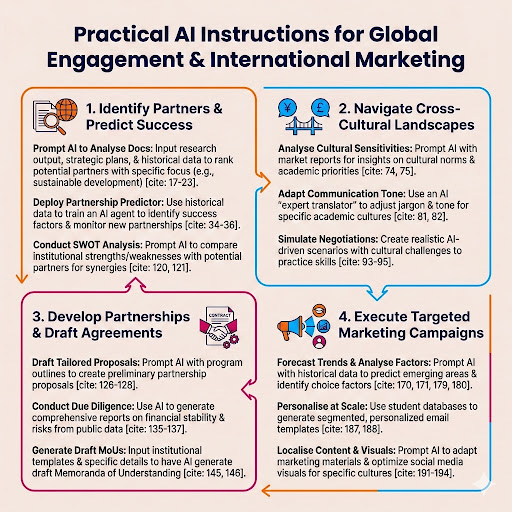
Ta-dah! Exactly what we needed. Although we might ask it to remove the references from the picture.
## Using Notebook LM
### Step 1
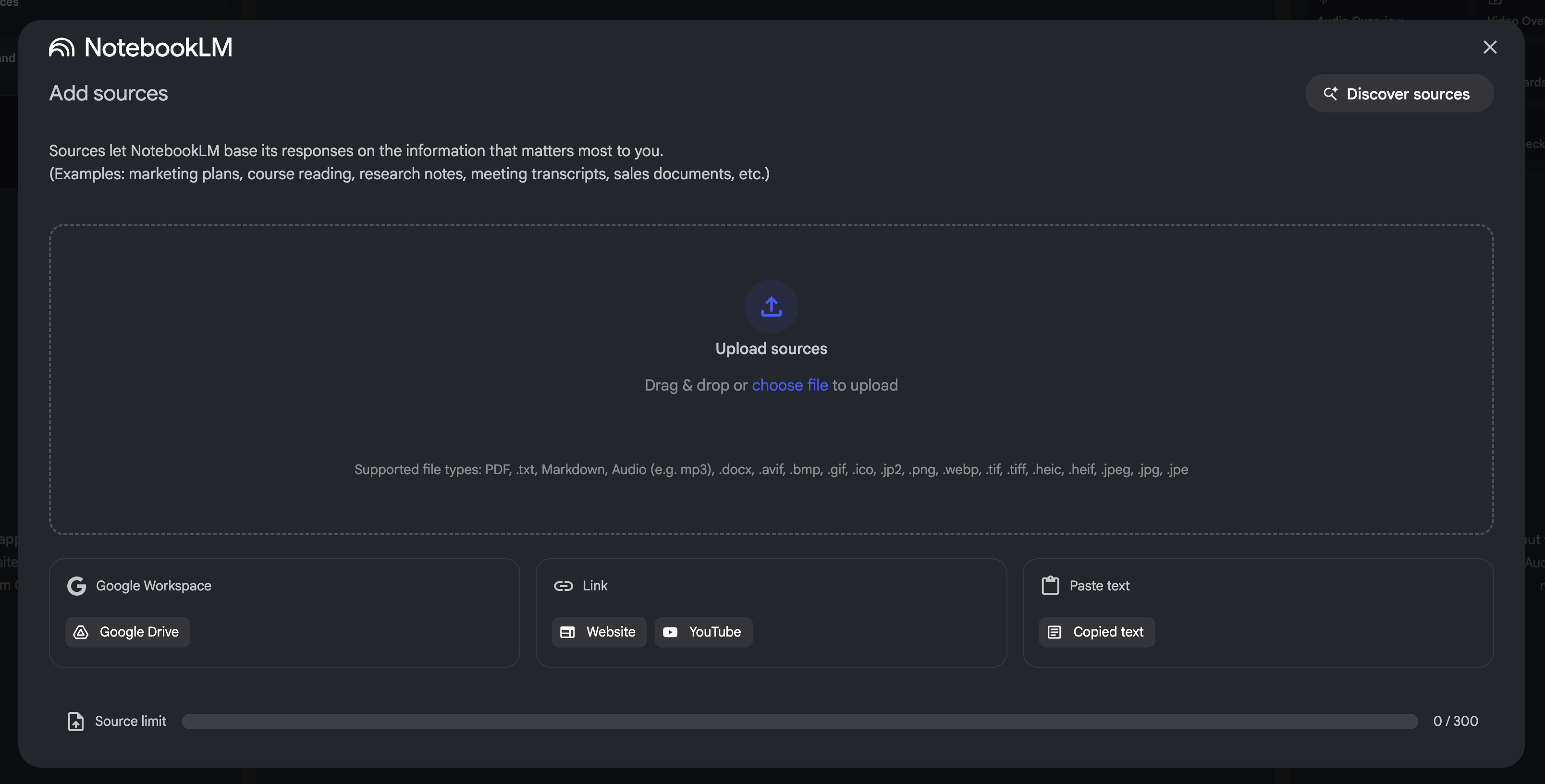
Go to [Notebook ML](https://notebooklm.google.com/) and upload a source. It can be a file, text, website link, YouTube Video, or a file from Google Drive.
### Step 2
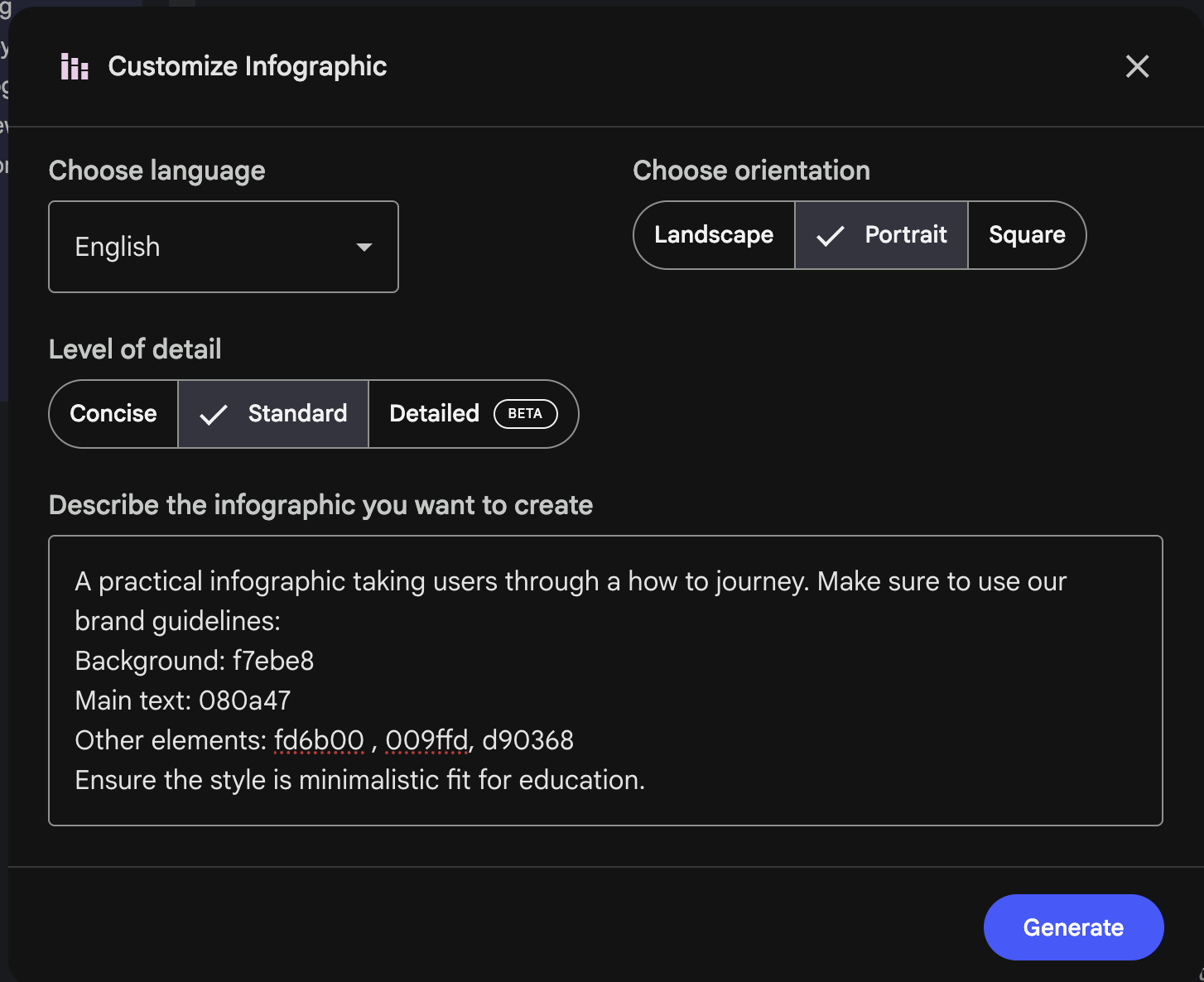
Once you have loaded the resource click on the Edit Infographic Icon. Maje sure to click on the Icon, not the main Infographic button as if you do that Google will just automatically create one. By editing it you have more control over the format. Here you can choose a preferred orientation and add extra details.
```
// A practical infographic taking users through a how to journey. Make sure to use our brand guidelines:
Background: f7ebe8
Main text: 080a47
Other elements: fd6b00 , 009ffd, d90368
Ensure the style is minimalistic fit for education.
```
### Results
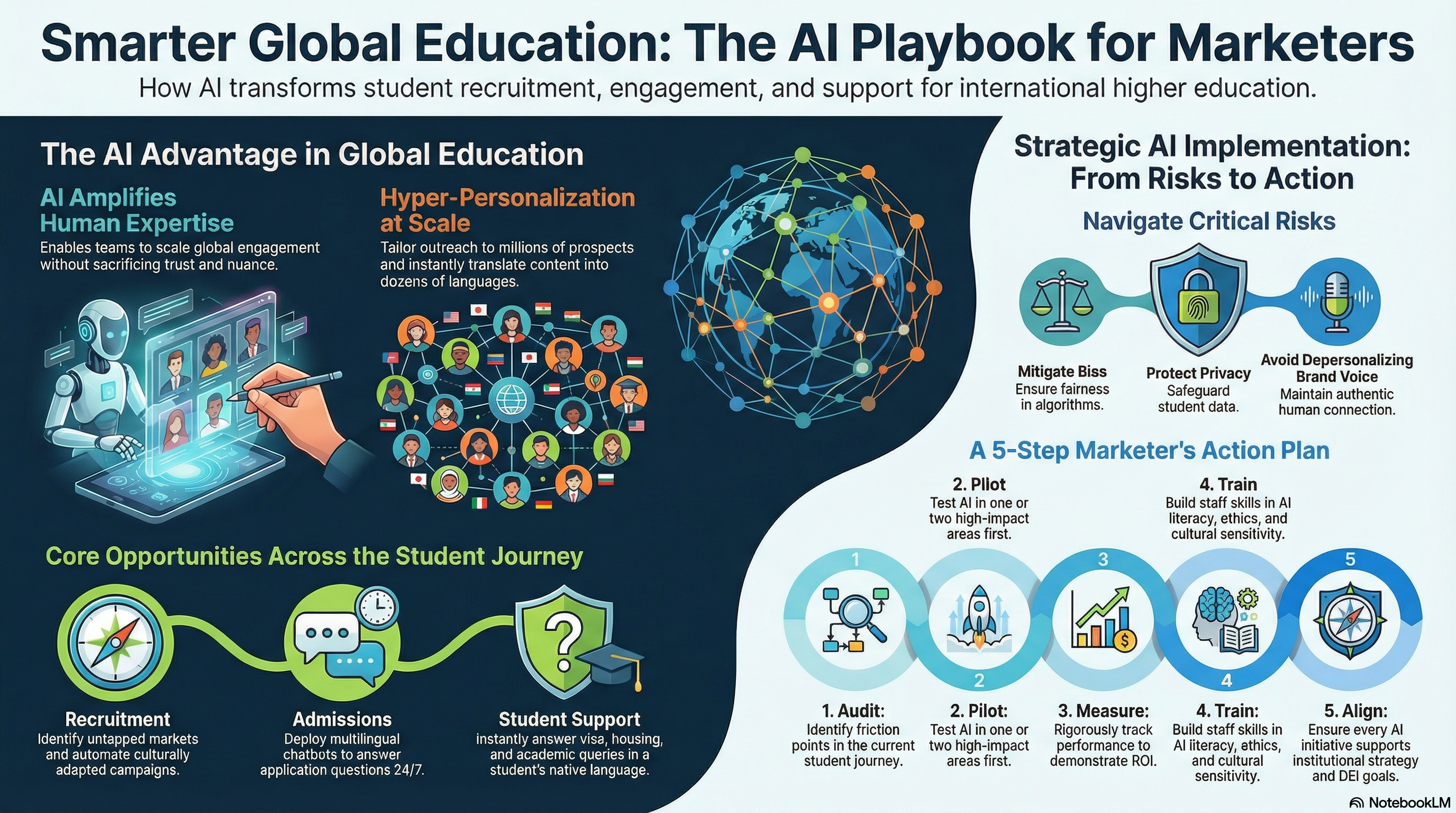
a) Without custom instructions (Google decide the style)
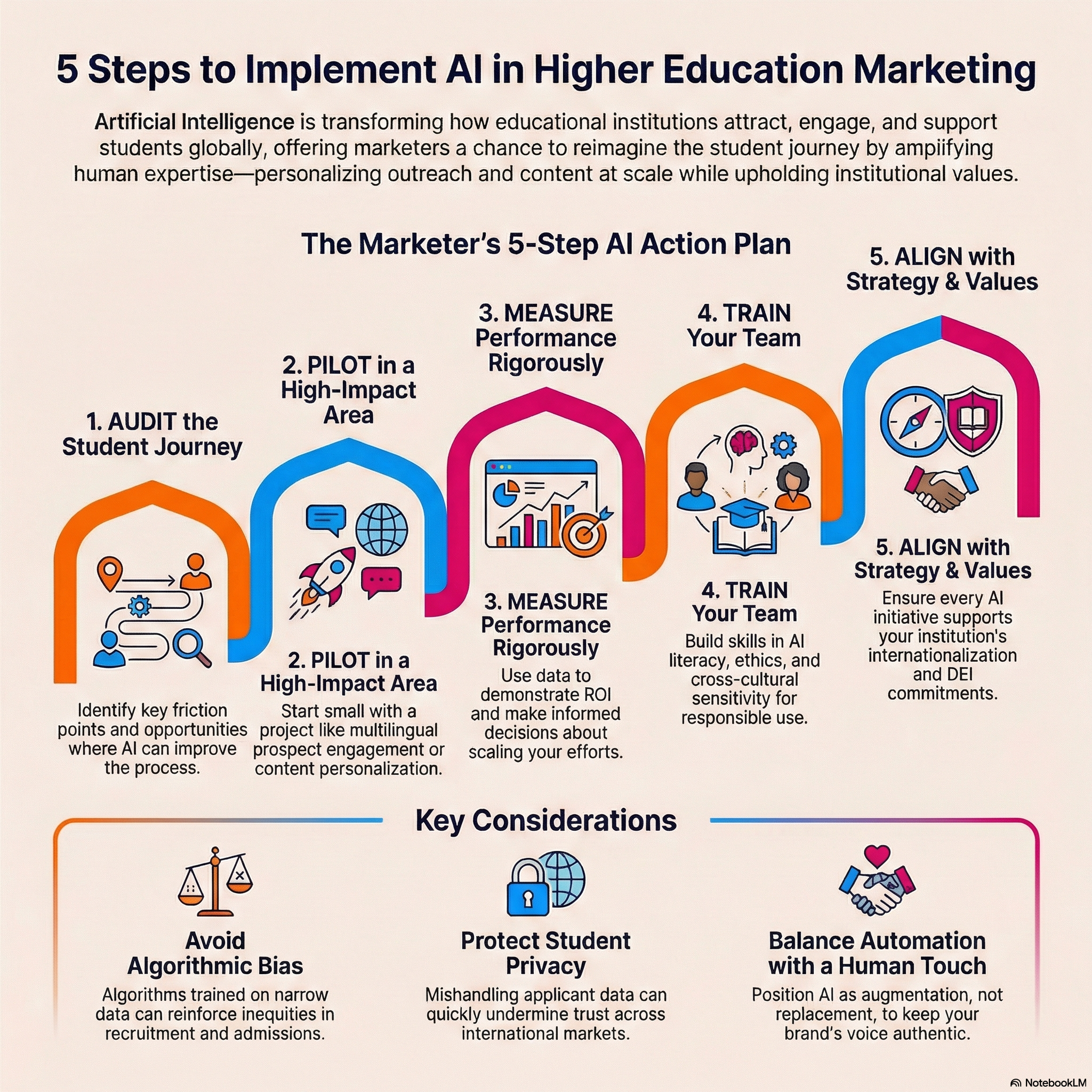
b) With custom instructions (You decide the style)
## Best Approach
You decide what works best for you and your use case. The beauty of this is you can tweak these instructions and refine them until you come up with the perfect recipe. Feel free to expriment with different types of illustrations - such as isometric, realistic, anime style, cartoon style, newspaper style, caricature style etc
---
# Agent Instructions
This documentation is published with GitBook. GitBook is the documentation platform designed so that both humans and AI agents can read, navigate, and reason over technical content effectively. Learn more at gitbook.com.
## Querying This Documentation
If you need additional information that is not directly available in this page, you can query the documentation by asking a question.
Perform an HTTP GET request on the following URL with the `ask` and `goal` query parameters:
```
GET https://docs.aiforglobaleducation.org/ai-cooking-lab/creating-infographics-with-googles-ai-suite.md?ask=&goal=
```
`ask` is the immediate question: it should be specific, self-contained, and written in natural language.
`goal` is what the user is ultimately trying to achieve, the reason they need the answer. Sharing it helps GitBook give you a better, more relevant answer. A goal is most helpful when it describes the outcome the user wants rather than restating the question. For example, with `ask=how do I create an API token`, a goal like `automate deployments from our CI pipeline` lets GitBook tailor the answer to that use case.
The response will contain a direct answer to the question and relevant excerpts and sources from the documentation.
Use this mechanism when the answer is not explicitly present in the current page, you need clarification or additional context, or you want to retrieve related documentation sections.